RAE Deprecated
RAE is now deprecated. You can still use the device in local mode, but we don't actively support it anymore.
Get Started with RAE
Get Started with RAE
Connect to RAE
- RAE will create a WiFi access point with the following credentials:
Text
1SSID: RAE-<ID>
2Password: wifiwifi@
3RAEs IP: 192.168.11.1- Open the WiFi settings on the device you are currently using and log into the AP with the provided credentials
- You use SSH to directly access everything except the system which is write protected
- Follow this guide on how to connect a linux system to wifi via the command line
- Plug RAE to your computer with the provided USB-C cable
- Open your command line and connect to RAE through SSH with the provided credentials
Text
1root@192.168.197.55 (no password is required)
2RAEs IP: 192.168.197.55- You can use SSH to directly access everything except the system which is write protected
Connect RAE to WiFi
- Run the following command in your terminal to generate a passphrase for your network
- When prompted enter your WiFi password
Command Line
1wpa_passphrase <WIFI_SSID>- The output should look similar to this:
Command Line
1network={
2  ssid="<WIFI_SSID>"
3  #psk="<WIFI_PASSWORD>"
4  psk=<PASSPHRASE>
5}- Edit the content of
/etc/wpa_supplicant.confso that its credentials match your WiFi settings
Command Line
1ctrl_interface=/var/run/wpa_supplicant
2ctrl_interface_group=root
3network={
4    ssid="<WIFI_SSID>"
5    psk=<PASSPHRASE>
6}- It is also necessary to edit
/etc/systemd/network/20-wifi.networkso it contains the correct information
Command Line
1[Match]
2Name=wlp1s0
3
4[Network]
5DHCP=ipv4
6
7[DHCP]
8UseDomains=true
Reboot RAE
- Run the following commands on RAE
Command Line
1systemctl stop hostapd
2wpa_supplicant -B -i wlp1s0 -c /etc/wpa_supplicant.conf
3systemctl restart systemd-networkd- If the connection to Luxonis Hub won't be necessary it is also recommended to disable Agent
Command Line
1robothub-ctl stop
2robothub-ctl startup disable
Finishing up
If you want to later reset RAE to its factory settings. This can be done by pressing a button at the bottom of RAE with a needle.
- Find the IP address of RAE, this can be done for example with WiFiman
- Copy and paste the
https://<IP of RAE>:9010into your preferred browser
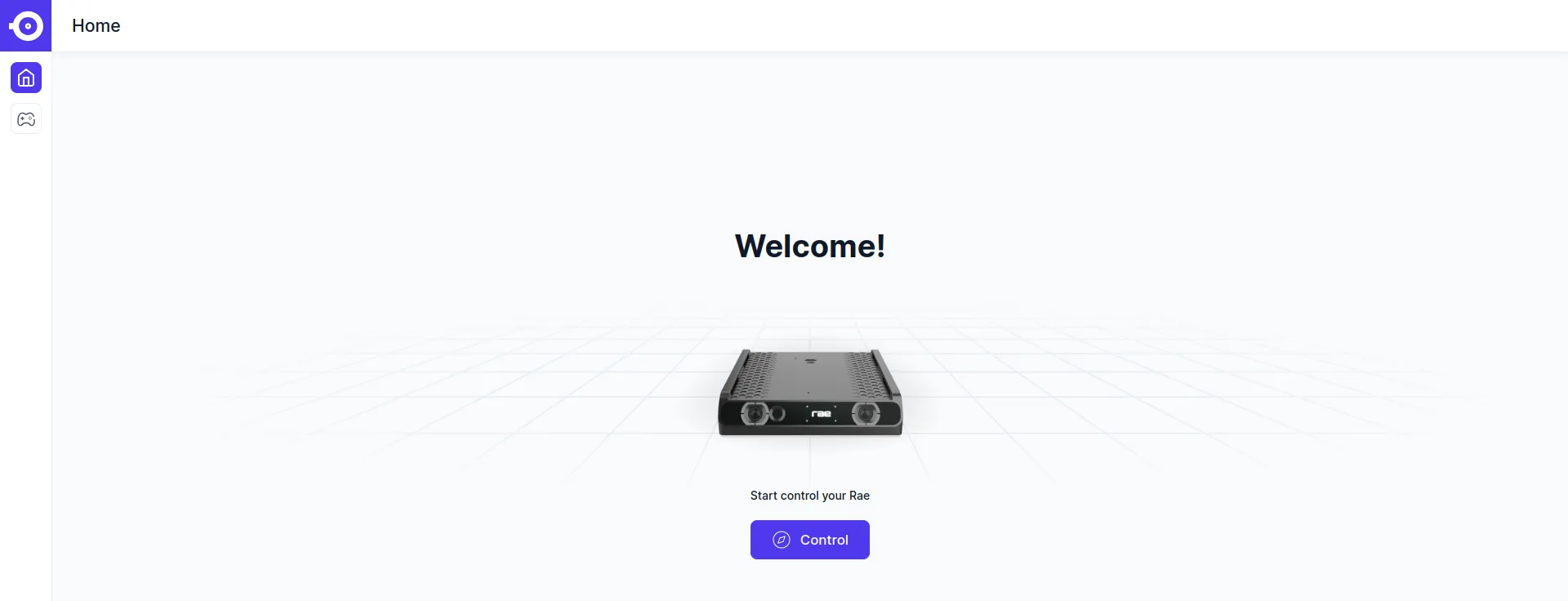
- Click on
Control