Over-the-Air (OTA) Updates
Requirements
- The device is online and connected to Hub.
- The device has sufficient free storage for downloading and unpacking the update.
- The device has stable power throughout the update process.
Update Workflow
1. Start Update
From the Device Overview, you can initiate an OS update if a newer version is available.
Click the orange “Update Available” button to begin the process.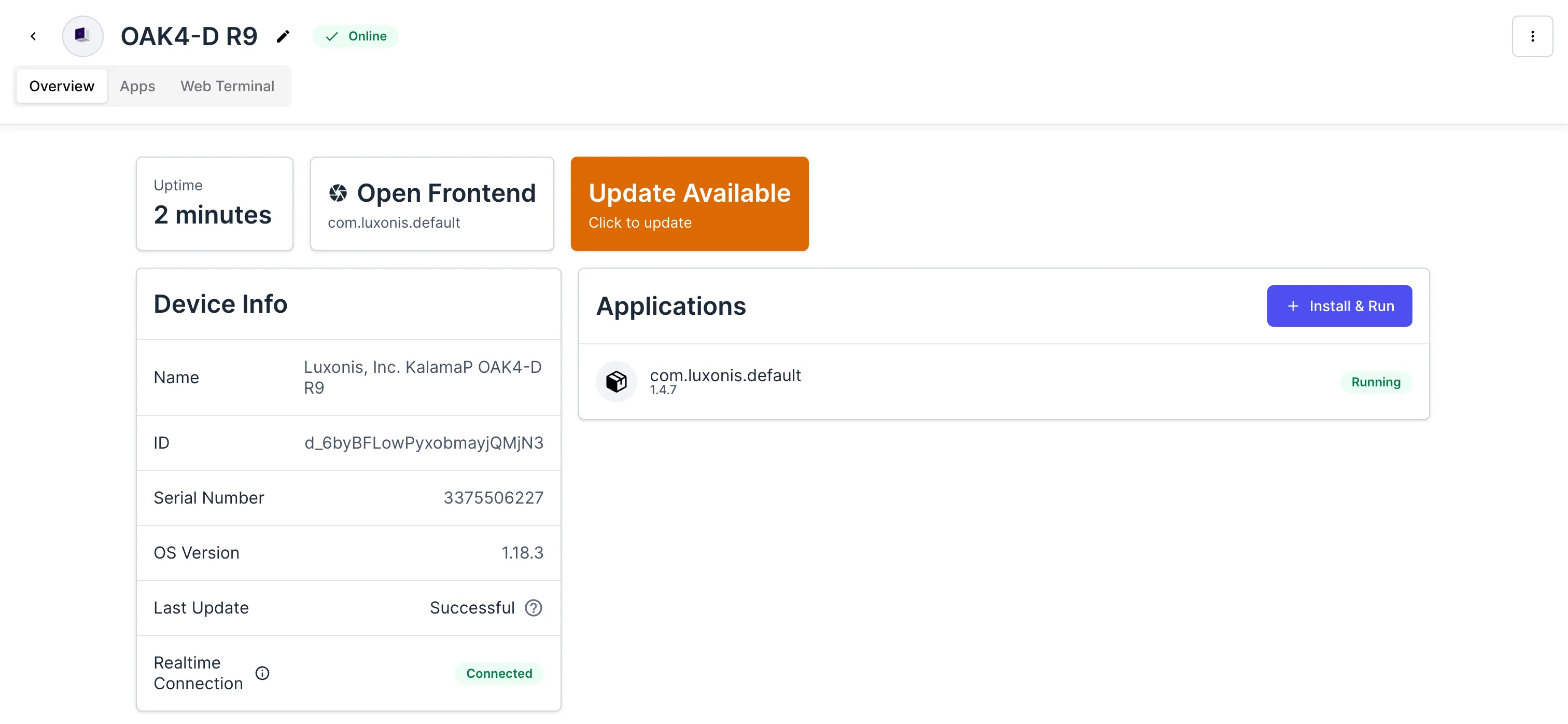
Click the orange “Update Available” button to begin the process.
2. Confirm Update
Review the changelog to see what’s new in the update.
Once ready, click “Update” to confirm and start the upgrade.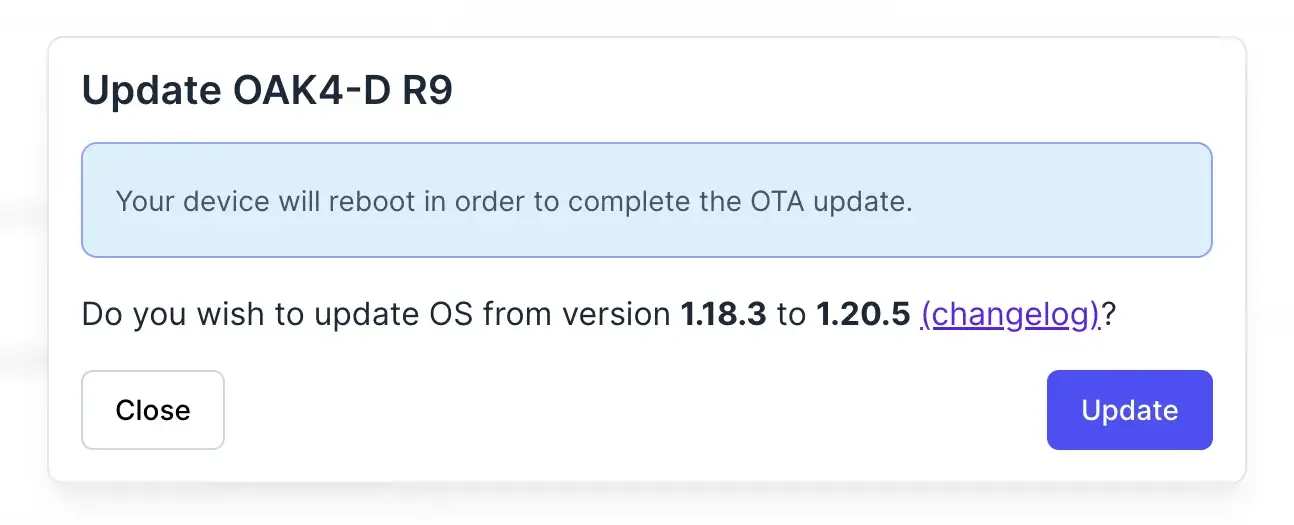
Once ready, click “Update” to confirm and start the upgrade.
3. Monitor Progress
The device will download the new OS.
After the download completes, the device will automatically reboot to finalize the installation.
After the download completes, the device will automatically reboot to finalize the installation.
4. View Result
After rebooting, you can verify the update status in the Device Overview.
Hover over the “?” tooltip next to the update field for detailed information about the result.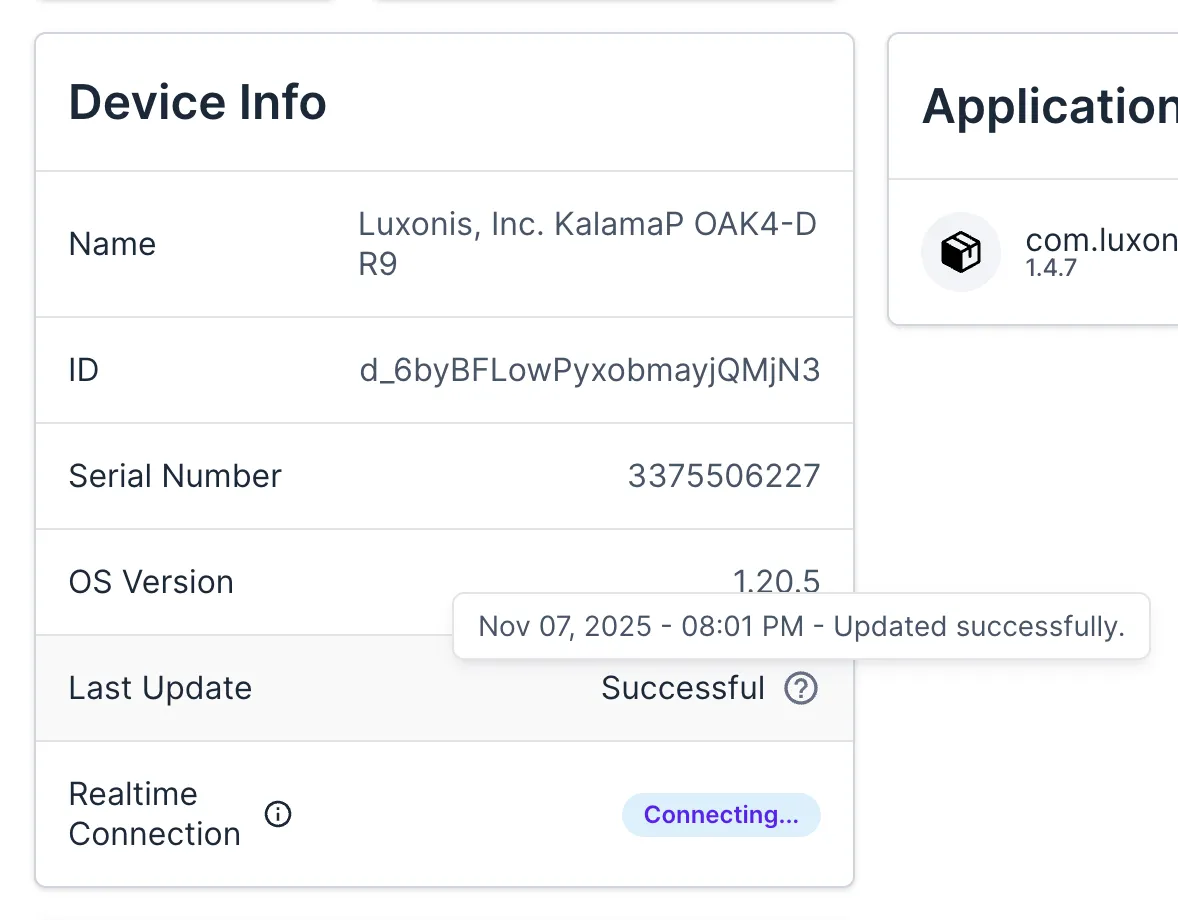
Hover over the “?” tooltip next to the update field for detailed information about the result.
Please note that a device restart is required to complete the OTA update. After reboot, all services and applications, including the OAK Agent, will restart automatically.