Quick Conversion
Choose Quick Conversion or Model Registry conversion
Choose by
Quick ConversionRecommendedFast path for one-off conversions
Model Registry conversionManaged workflow for uploaded models and deployable variants
Best when
You want to upload a model, convert it, and download the result without using the rest of the Hub model-management workflow.
You want to upload models to Hub, manage their history and variants, and make deployment or DepthAI usage easier later.
Workflow shape
Single-page conversion flow with recent outputs at the bottom.
Conversion as part of the Model Registry workflow, with model history and managed outputs in Hub.
Next move
Continue with Convert a model.
Use the Model Registry conversion guide instead.
Quick ConversionRecommendedFast path for one-off conversions
Best when
You want to upload a model, convert it, and download the result without using the rest of the Hub model-management workflow.
Workflow shape
Single-page conversion flow with recent outputs at the bottom.
Next move
Continue with Convert a model.
Model Registry conversionManaged workflow for uploaded models and deployable variants
Best when
You want to upload models to Hub, manage their history and variants, and make deployment or DepthAI usage easier later.
Workflow shape
Conversion as part of the Model Registry workflow, with model history and managed outputs in Hub.
Next move
Use the Model Registry conversion guide instead.
Convert a model

- Choose the raw model format you want to convert from (YOLO / ONNX).
- Choose the target RVC platform (RVC2 / RVC3 / RVC4).
- Upload the model file.
- Define the conversion parameters such as input shape and advanced export options.
- (Optional) Enable Add to Model option to attach the converted output as a new version under an existing Model Registry entry.
- Start the conversion by clicking Submit.
Track progress and download the result
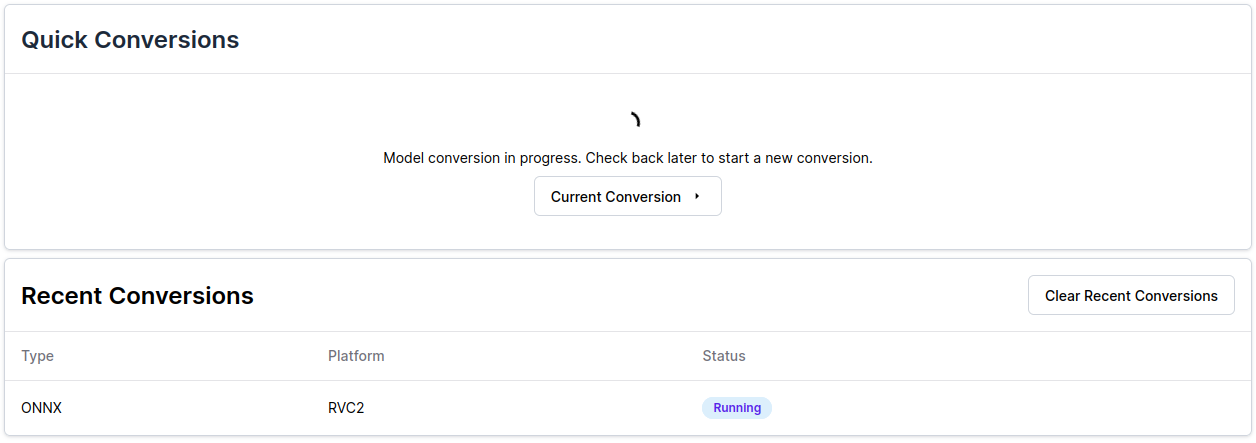
- the conversion status is Completed
- the converted output appears in Recent Conversions
- the compiled model can be downloaded from the result row
One conversion at a time
Only one Quick Conversion process can run at a time.