To make full use of AI models on our devices, they must first be converted into the RVC compiled format for the target platform. If you would like to understand what conversion is, why it is needed, and some of the key concepts involved, see the Conversion section.While Hub provides a fast and simplified option through the Quick Conversion tool, some workflows require deeper control. The Detailed Conversion workflow is designed for these more advanced use cases, offering fine-grained configuration parameters and version/variant management. If you instead prefer a fast, one-off conversion with minimal setup, see the Quick Conversion section.
Conversion
It is assumed here that the models aimed for conversion have already been uploaded to Hub. If this step has not yet been completed, please refer to the Model Upload guidelines.
For custom models, prefer uploading an ONNX NN Archive as the base model whenever possible.A source NN Archive acts as the source of truth for the model's tensor metadata, preprocessing, and optional postprocessing metadata (heads), which makes the conversion flow more predictable and usually produces a converted archive that is ready to use in DepthAI without manual edits.If you upload a raw ONNX file instead, Hub can infer parts of the tensor structure from the graph, but it cannot infer training-time preprocessing choices or semantic output metadata such as class names and parser selection.
Step by step instructions:
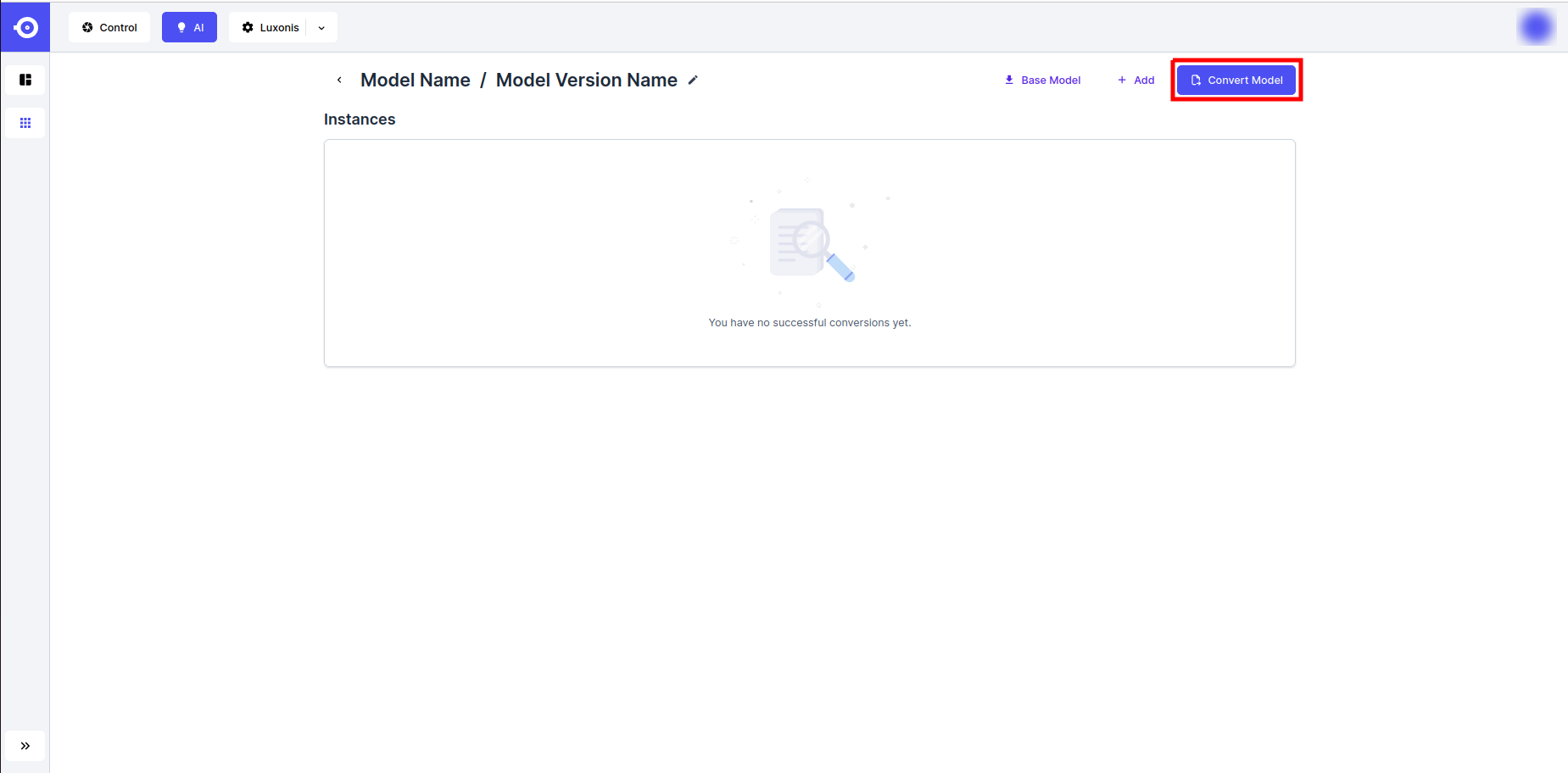
Open the model variant
Open Hub, navigate to the Models section, open the desired model, scroll to Model Variants, and click Convert next to the variant you want to export.
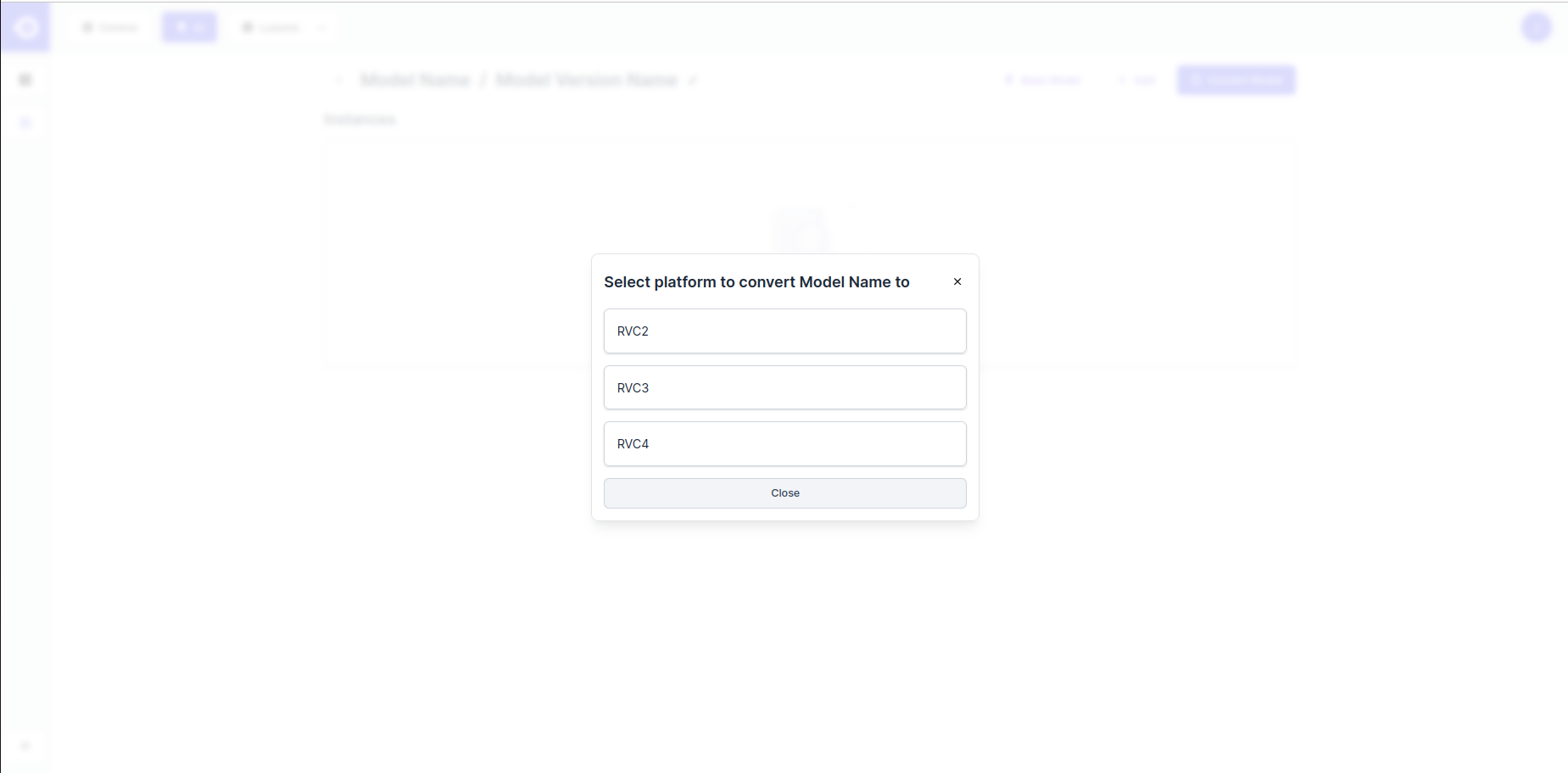
Choose the target platform
Select the target RVC platform. The available targets depend on the uploaded base model format. In practice, ONNX-based model sources offer the broadest conversion support across platforms.
Configure the conversion form
Review the prefilled values and adjust them as needed. If the base model is a raw ONNX file, enter the source-model input settings manually. If the base model is an ONNX NN Archive, use its config.json as the source of truth and only change values if the archive metadata is incorrect.Use the reference sections below for the exact meaning of each field.
Export and confirm the result
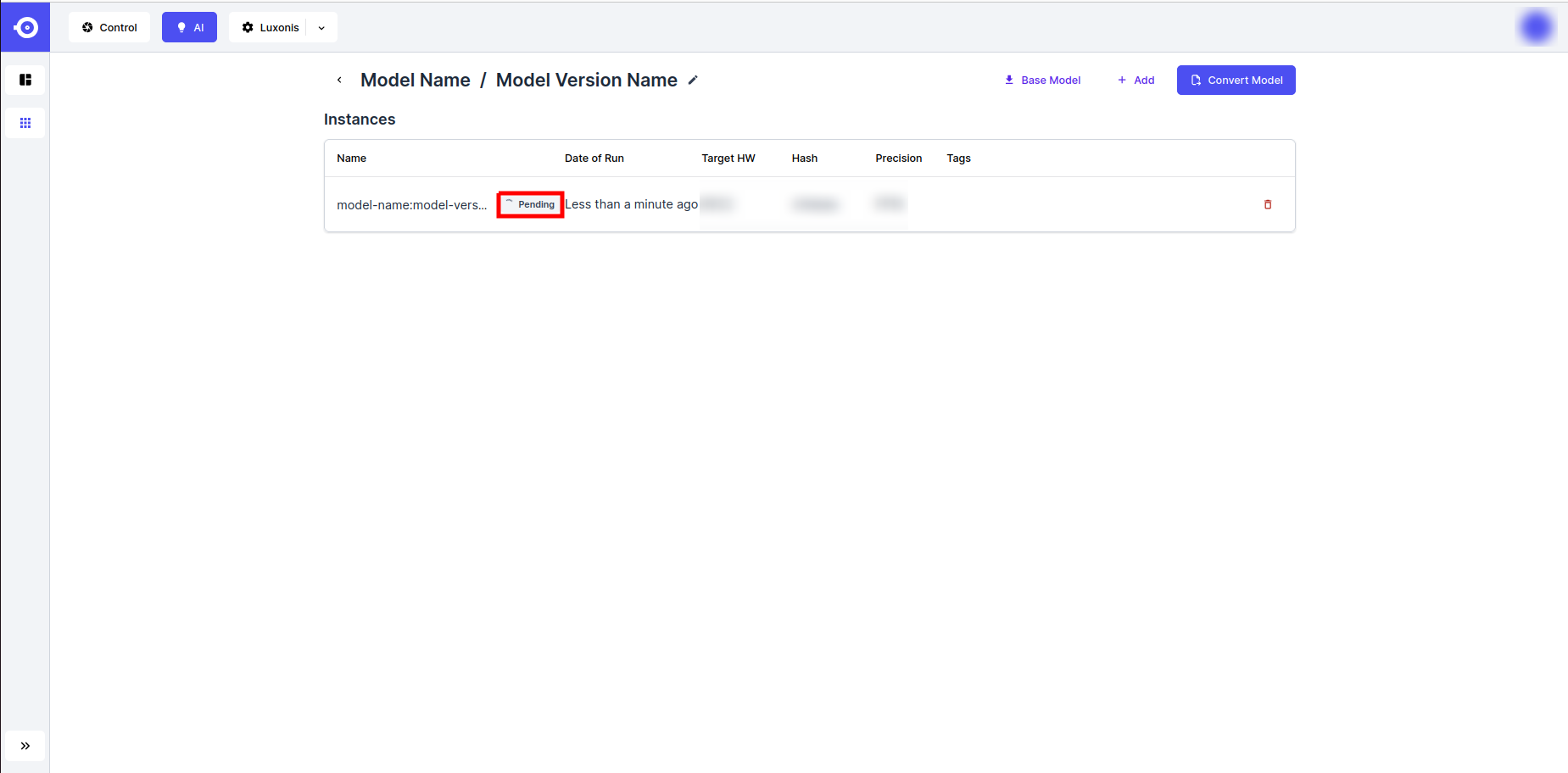
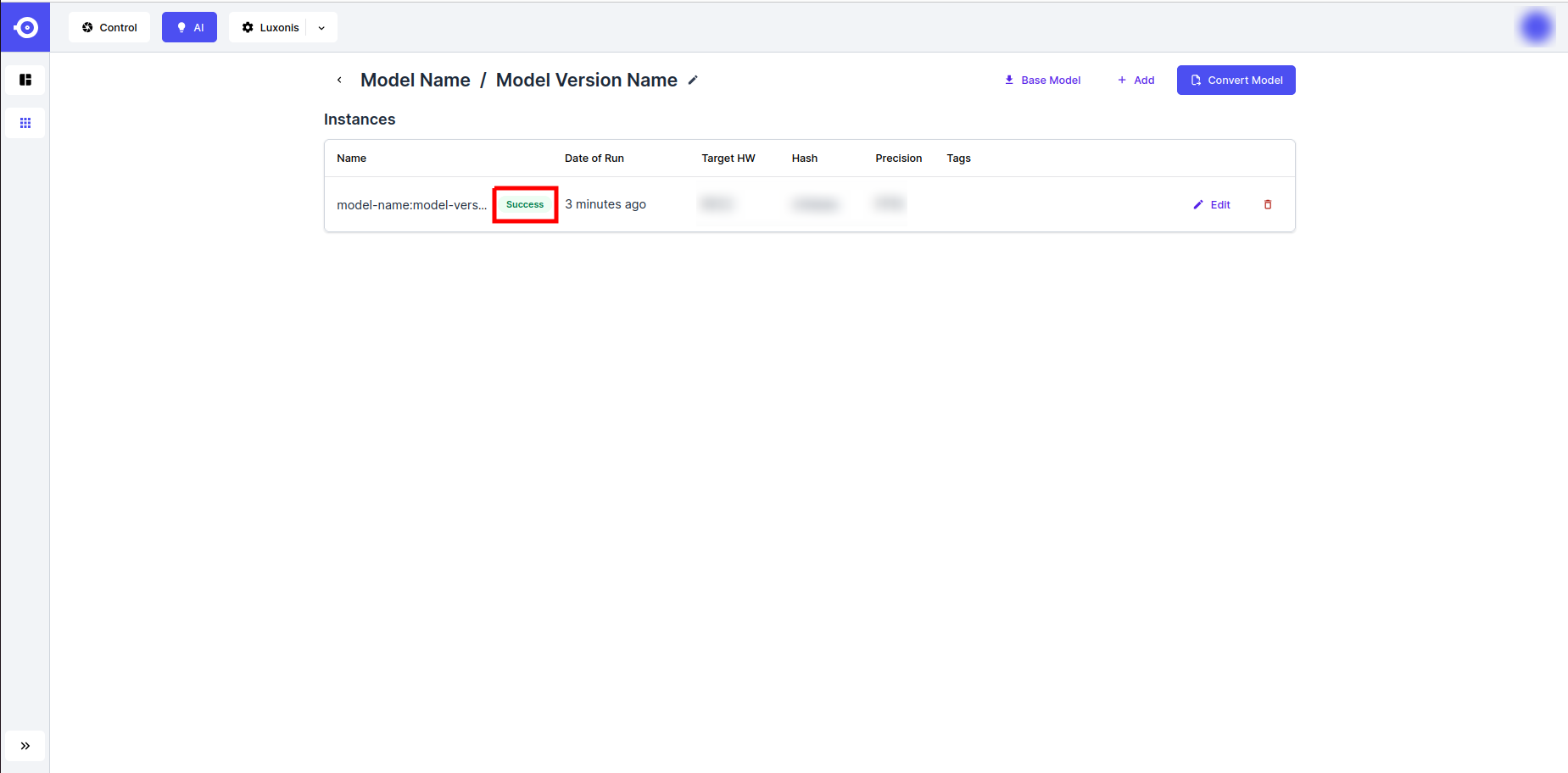
Click Export to start the conversion. The new model instance first appears as Pending and changes to Success when the export is ready. You can then download the converted archive or reference it directly through DepthAI.
Parameter Reference
Source-model input settings
Parameter
Category
Meaning
Shape
Source model
Input shape expected by the source model
Mean Values
Source model
Per-channel values subtracted from the input
Scale Values
Source model
Per-channel divisors applied after mean subtraction
Encoding From
Source model
Channel order expected by the source model
Encoding To
Exported model
Channel order expected by the converted model at runtime
Platform and export settings
Parameter
Category
Meaning
Model Instance Name
Exported model
Name of the converted instance shown in Hub
Ir version / Snpe version
Conversion process
Target conversion format or runtime version
Disable Onnx Simplification
Conversion process
Disables ONNX graph simplification during conversion
Mo Args
Conversion process
Extra OpenVINO Model Optimizer arguments for RVC2 and RVC3
Compile Tool Args
Conversion process
Extra OpenVINO compile tool arguments for RVC2
POT Target Device
Conversion process
POT target device for RVC3
Convert to blob
Exported model
Exports .blob instead of .superblob for RVC2
Quantization settings
Parameter
Category
Meaning
Quantization Data
Conversion process
Dataset used to calibrate quantized conversion
Max Quantization Images
Conversion process
Maximum number of images used during quantization
Target Precision
Conversion process
Precision target such as FP16 or INT8 for RVC4
In the Hub UI, you can choose from the generic datasets listed below:
Driving - Images of streets and vehicles (OIv7 classes like Vehicle, Car, Traffic light, etc.)
Food - Images of fruit, vegetables, raw and prepared foods (OIv7 classes like Apple, Salad, Pizza, etc.)
General - A random subset of OIv7 images representing a diverse set of objects and scenes
Indoors - Images of indoor spaces (OIv7 classes like Table, Chair, Fireplace, etc.)
Random - Random-pixel images
Warehouse - Images of warehouse interiors (a random subset of forklift-1 images)
If you need a custom quantization dataset, use the HubAI SDK. For more advanced conversion and quantization options, see the ModelConverter documentation.
During conversion, source preprocessing is embedded into the exported model structure. It is generally advised to fill in the relevant parameters (Scale Values, Mean Values, and Encoding) in a way so that the converted model expects BGR input without any additional scaling or mean shifting.The order of preprocessing operations is:
Reversing input channels;
Subtracting mean values;
Dividing by scale values.
Keep this in mind when manipulating inputs, i.e. mean and scale should follow the order of the original color encoding of the model.If your original preprocessing is input = (input / 255.0 - mean) / std and your runtime input is an 8-bit image in the [0,255] range, enter Mean Values = 255 * mean and Scale Values = 255 * std.For standard ImageNet RGB normalization, this means Mean Values = [123.675, 116.28, 103.53] and Scale Values = [58.395, 57.12, 57.375].Do not swap mean and scale values when changing between RGB and BGR.Only reorder the channels to match the original source-model encoding.Geometric preprocessing such as resize, crop, or letterboxing is still your responsibility at runtime, so your input pipeline still needs to match the model's original preprocessing.
Raw ONNX vs ONNX NN Archive
Starting point
What Hub can determine automatically
What you still need to define
Raw ONNX
Tensor structure from the graph
Training-time preprocessing choices and semantic output metadata such as class names and parser configuration
ONNX NN Archive
Tensor metadata, preprocessing, and optional heads metadata from config.json
Export choices such as target platform and conversion-specific options
If you start from a correctly defined ONNX NN Archive, you normally should not edit the exported archive manually. It is expected that the exported archive differs from the source archive. For example, the model path changes from model.onnx to a compiled artifact such as .superblob, .blob, or .dlc, and mean / scale can become null because preprocessing was baked into the compiled model.
Troubleshooting
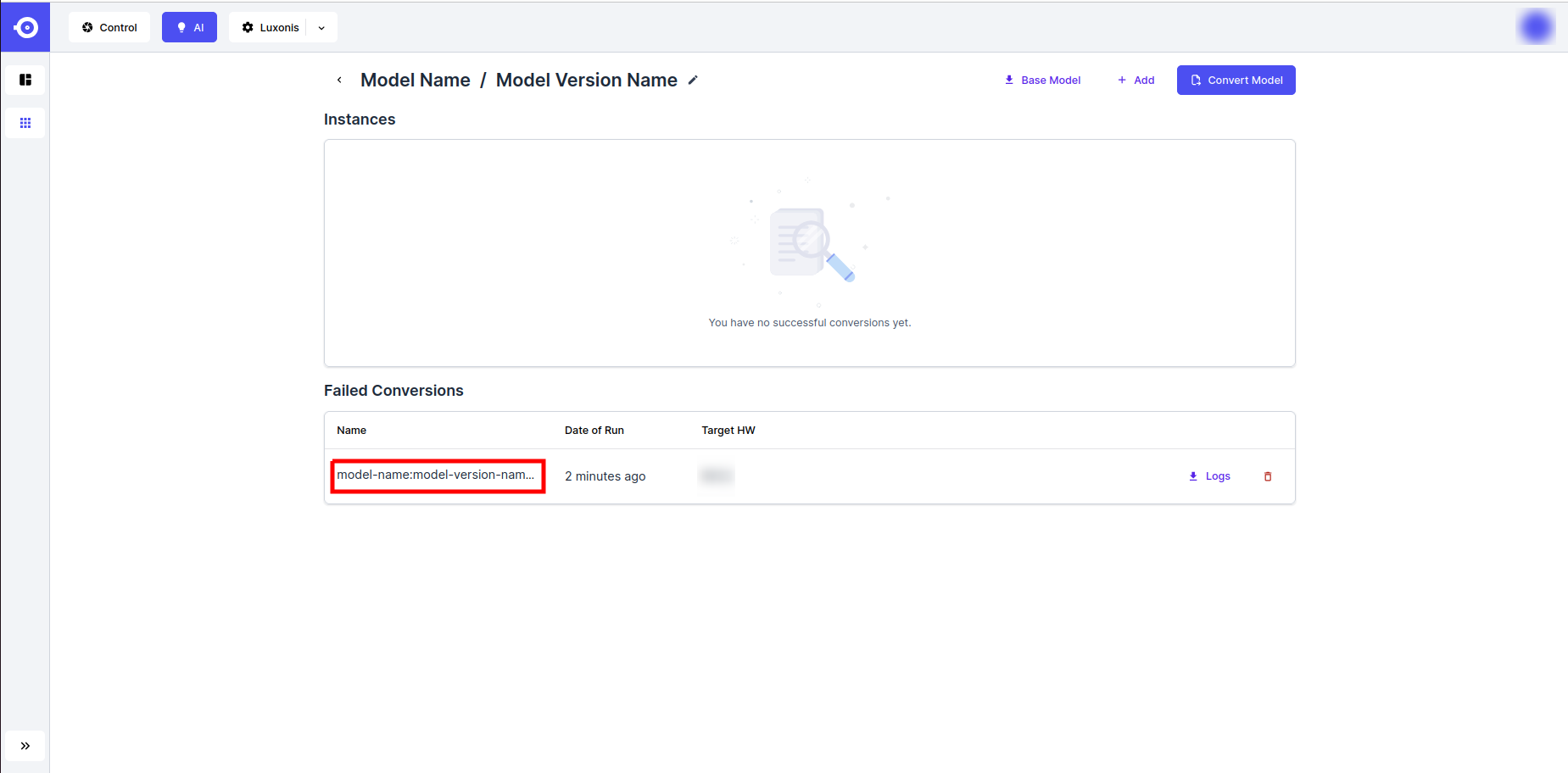
Not all models can be converted for the desired platform. You can inspect failed conversion logs as follows:
Open the failed conversion job
Find the failed job in the Failed Conversions section and open it.
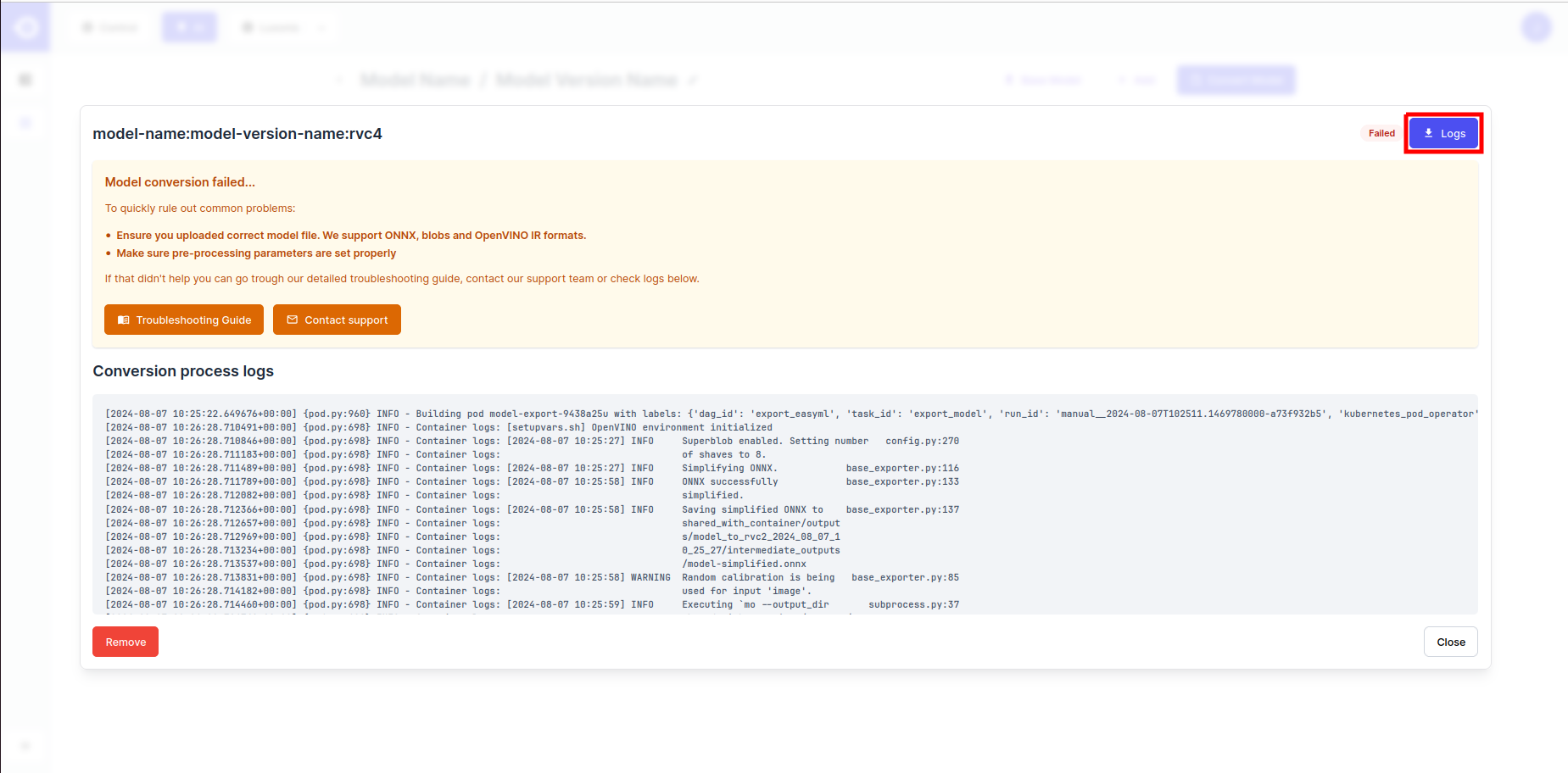
Download or inspect the logs
Use the Logs button in the top right corner to download the logs, or inspect the Conversion process logs section directly on the page.
If export fails, corrections need to be made either to the model or the utilized conversion parameters. Please consult the Conversion Troubleshooting page for more information.