Software
DepthAI API (Python/C++)
DepthAI v3 SDK library for building pipelines and apps on OAK and OAK4 cameras.
Open DepthAI API docsoakctl CLI
Command-line tool for managing and configuring OAK4 devices and deploying apps.
Install oakctl1
Getting Started
Pick the correct getting started guide for your device.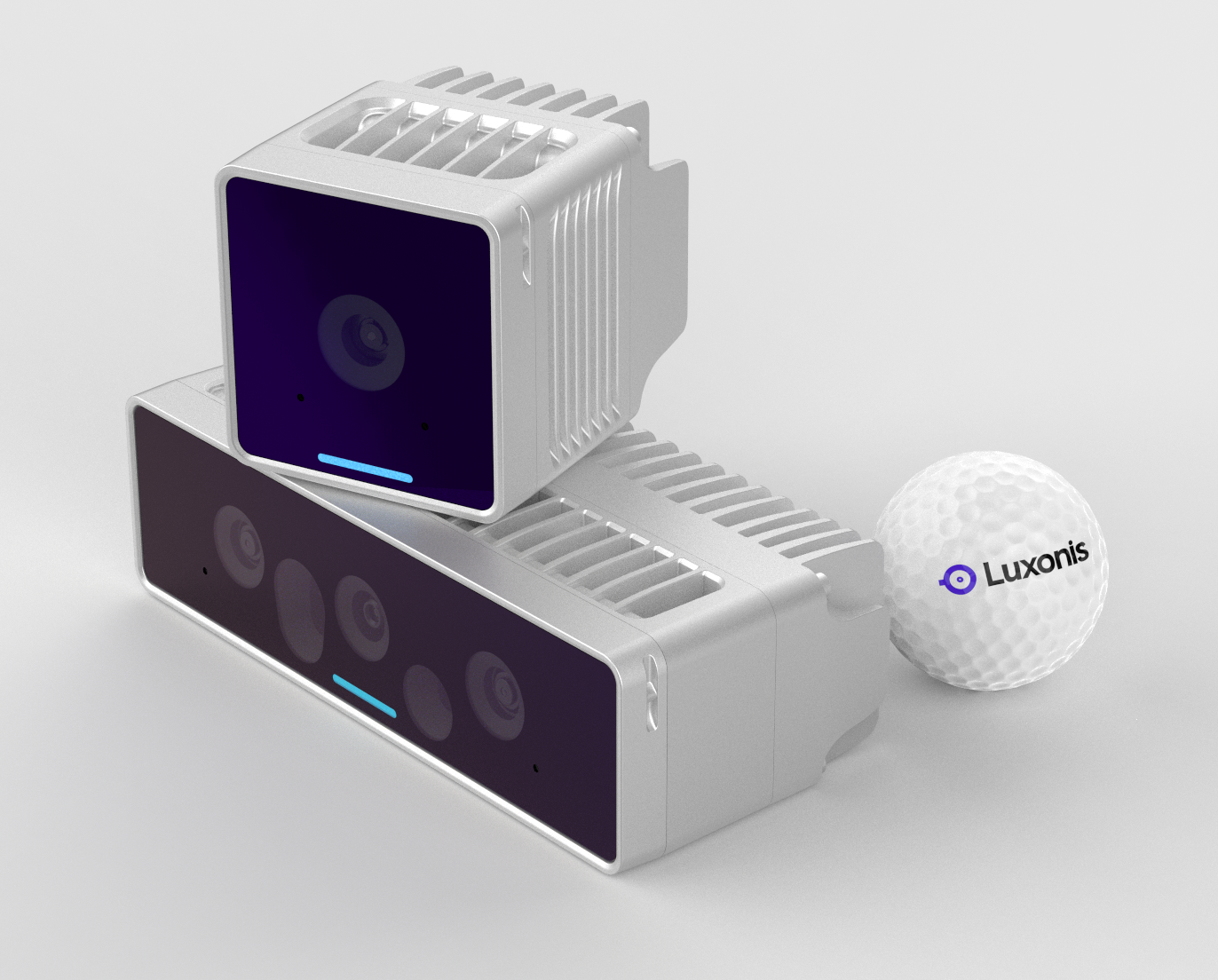
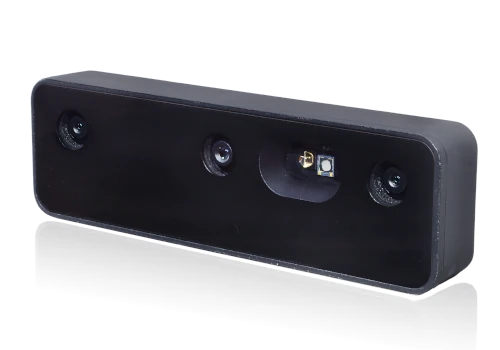 After you have you camera connected, the quickest way to start is by running OAK Viewer.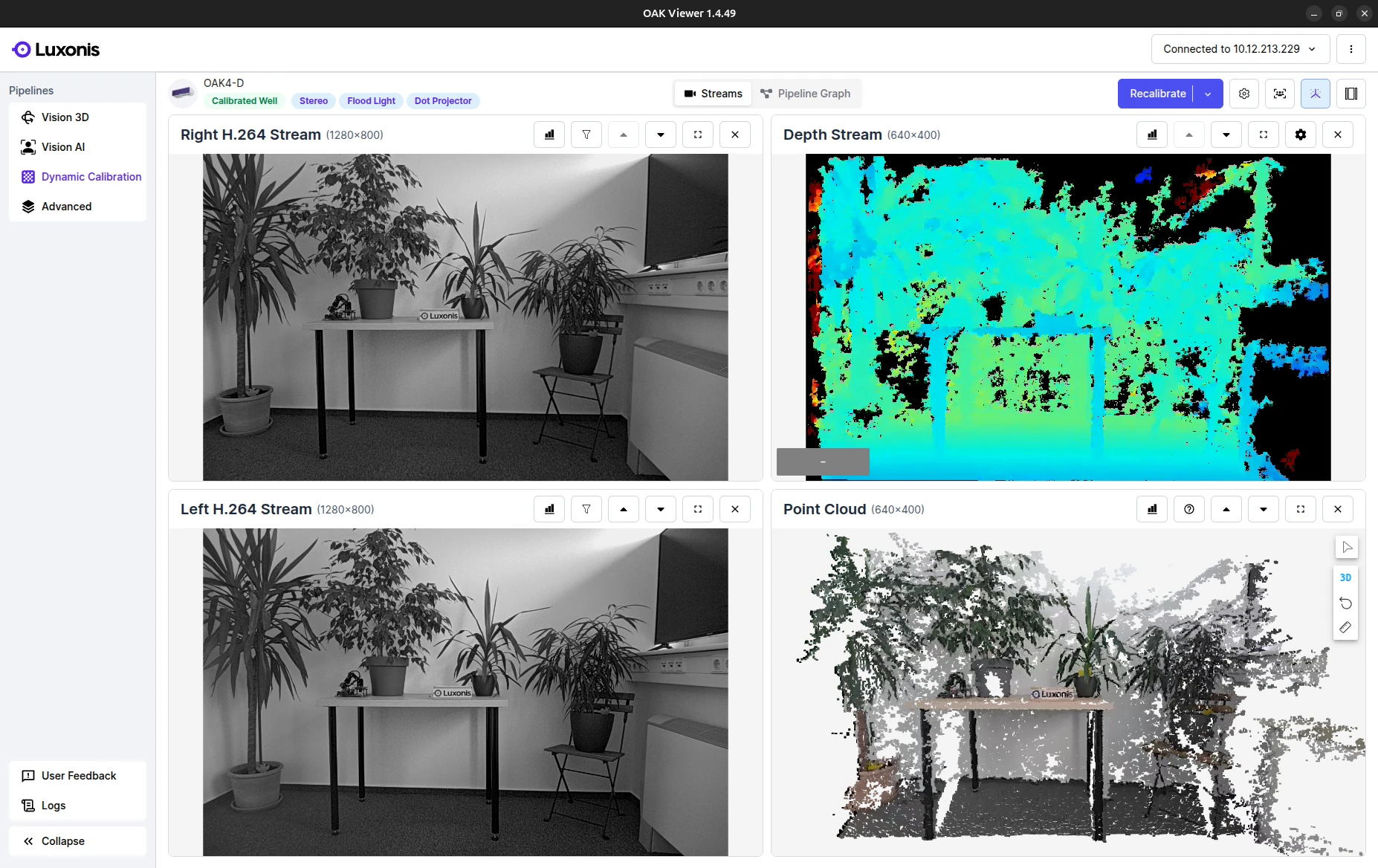
Connecting OAK4
Use the RVC4-based OAK4 Getting Started guide to set up the hardware and perform the initial configuration.
OAK4 Getting StartedConnecting OAK
Follow the RVC2-based OAK Getting Started to see how to connect it to your host PC.
OAK Getting StartedOAK Viewer
OAK Viewer is a desktop GUI application that allows you to visualize the camera's streams and interact with the device. It is available for Windows, macOS and Linux.
Click here to get started2
Running your first App
Try out our pre-made applications to dip your toes into our ecosystem. Here is an example of how to start the generic neural network app:Continue exploring other pre-made applicationsContinue exploring other pre-made applications
Run first application with OAK4
Install oakctl
Linux/MacOS
Windows
Linux/MacOS
On 64bit system, run:
Command Line
1bash -c "$(curl -fsSL https://oakctl-releases.luxonis.com/oakctl-installer.sh)"Deploy an example App
Command Line
1# Connect to the device
2oakctl connect
3# Clone the repo
4git clone --depth 1 --branch main https://github.com/luxonis/oak-examples.git
5# Change directory to the generic-example
6cd oak-examples/neural-networks/generic-example/
7# Run the app and follow instructions to open the web viewer
8oakctl app run .
You just ran the App in Standalone mode.
See below for the difference between Standalone and Peripheral mode.
Run first application with OAK
Linux/MacOS
Windows
Linux/MacOS
Command Line
1# Clone the repo
2git clone --depth 1 --branch main https://github.com/luxonis/oak-examples.git
3# Change directory to the generic-example
4cd oak-examples/neural-networks/generic-example/
5# Create and enter virtual python environment
6python3 -m venv venv
7source venv/bin/activate
8# Install requirements into the environment
9pip install -r requirements.txt
10# Run the app and follow instructions to open the web viewer
11python3 main.pyYou just ran the App in Peripheral mode.
See below for the difference between Standalone and Peripheral mode.
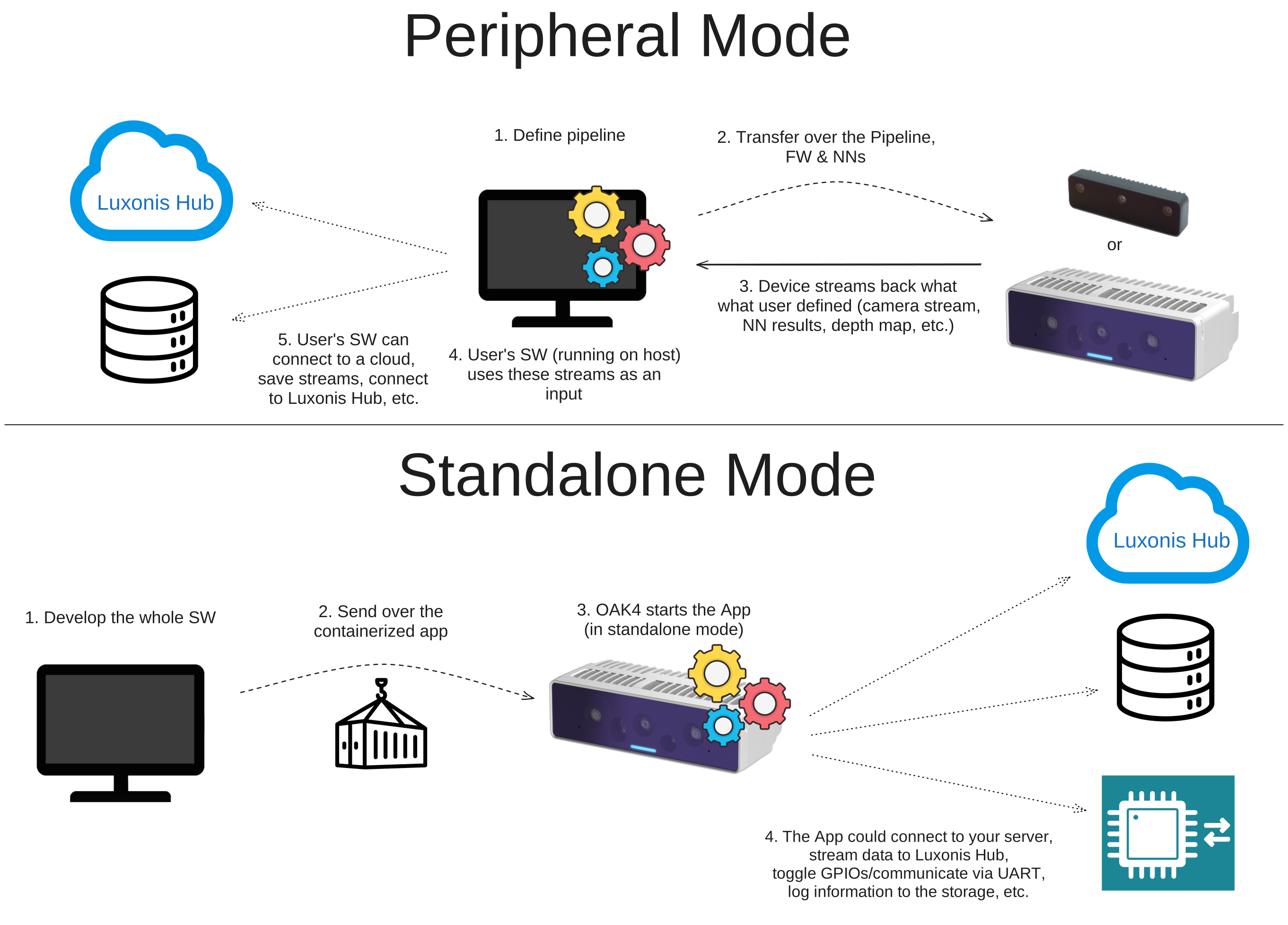
Standalone vs Peripheral
| Compatibility | Standalone¹ | Peripheral² |
|---|---|---|
| OAK4 | ✅ | ✅ |
| OAK | 🚫 | ✅ |
- Standalone: The App is run only on the camera. Apps are deployed via oakctl.
- Peripheral: The App runs on the camera, but the host computer remains connected to it over a TCP socket. Apps are run using the DepthAI API. Best used for quick prototyping and development.
3
Building the App from ground up
Quickest way to get started with developing on your own is to use the template app. This app is a starting point for your own applications and includes all the necessary components to get you up and running.This will download the template / cookie-cutter app to your current directory.Continue developing your template app
Command Line
1# Install core packages
2pip install depthai --force-reinstall
3# Clone the template app
4git clone https://github.com/luxonis/oak-template.git
5# Change directory to the template app
6cd oak-template
7# Install requirements
8pip install -r requirements.txtText
1template-app/
2├── main.py
3├── oakapp.toml
4├── requirements.txt
5├── media/ # Optional media files
6└── utils/ # Optional helper functions4
Next Steps
We suggest you continue exploring the ecosystem in one of the following ways.
OAK Apps
Build, package, and manage containerized computer vision apps for OAK devices.
Open OAK Apps overviewDepthAI
Use the DepthAI API to build and run real-time vision pipelines on OAK and OAK4 cameras.
Open DepthAI overview